enJOY it

an archived personal and craft blog from Elise Blaha Cripe.

creating PSE collages. from elise blaha on Vimeo.

This seven minute video shares the different techniques I use to create monthly product collages in Photoshop Elements 9. The final board always comes together like a puzzle & is usually fun to make.

Below are some samples of these monthly pages :
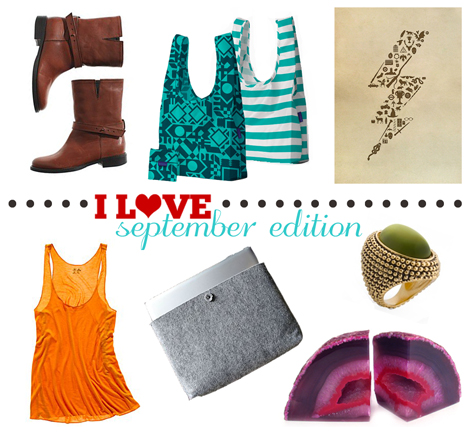
Iloveseptember

Dottedline

Ilovejuly

Dottedline

Iloveapril

Dottedline

Ilovemarch

Dottedline

Ilovespring

They can all be seen (with product links) here.

Posted in

16 responses to “creating a collage in PSE.”

  1. Lorna Avatar

    Thank you for that vidoe tutorial. Photoshop intimidates me and I often feel like I can’t use it until I know what every single little button does. That was really clear and easy to follow and took the fear out of it 🙂

    Like

  2. haya Avatar
    haya

    in case you haven’t already figured this out, command shift 4 will let you take a screenshot of just a selected area (so you could draw a box around those earrings instead of fiddling with that later)

    Like

  3. karen Avatar
    karen

    exactly, i mean exactly what I wanted to know. thanks

    Like

  4. Amanda Avatar
    Amanda

    Hi Elise, thank you for sharing!

    Like

  5. KaoruMarie Avatar

    Thanks so much for sharing! I always thought I needed the big photoshop program to do something like this.
    (and in case a PC user doesn’t want to google it, PCs have a “print screen” button on the keyboard. just press the button and then paste into an open document to display the screenshot.)

    Like

  6. Michelle Avatar

    Hey Elise – thanks for the Mac shortcut to do a whole screen shot! Cool to know. I use the same but with 4 instead of 3. Then I can click and drag anywhere on the screen and get a shot of just part of the screen, any part I want.
    I have CS4, not PSE, so does PSE have an eraser tool? On mine that is just hit E for Eraser. Then instead of having to create another layer and add color on top of an item, you can just erase color or sections from the actual item.
    I need to remember the magnetic lasso tool. I am always hand selecting for precision and sometimes I don’t need to be so perfectionistic.

    Like

  7. Jess Avatar

    Love the video, as I’m a total newbie to PSE! Thanks so much! 🙂

    Like

  8. Claire Avatar

    Thank you ! The video is really great and very helpful !

    Like

  9. ksw Avatar
    ksw

    I love learning new stuff – but I LOVE when you show us cool stuff, too! With the links 😉

    Like

  10. ksw Avatar
    ksw

    Thank you for all that you do!

    Like

  11. Lauren Avatar

    Yay! I love this tutorial! I currently have aperture, but I’m leaning toward investing in photoshop. Thanks!

    Like

  12. Kara Avatar

    Thank you so much for this very helpful tutorial!

    Like

  13. Alison Avatar

    This is so helpful! Would you happen to know why when I move something to my collage that I can’t adjust the size? It doesn’t have the dots to make it larger or smaller. Thank you so much!
    Alison
    http://heartofgoldandluxury.blogspot.com

    Like

  14. elise blaha Avatar

    Make sure you have the arrow highlighted and then the boxes checked at the top that say show lines or show boundaries or something like that. I am pretty sure it is a setting you want to have turned on. Hope that helps! elise

    Like

  15. Crista Avatar

    great tutorial, THANK YOU. I am still new to blogging, I just went through the Blog Design e-course and I’ve been a busy girl sprucing up my blog! I’ve still got a long way to go. THANK YOU so much for your expertise!! xoxo

    Like

  16. Shayne Avatar

    Elise, thank you SO much for this tut. I have been wanting to create a collage in PS for the longest time, but have been unsure as how to go about it. Today, after reading you, I DID IT! I am so excited. thank you thank you. And, I also printed out a 12×12 photo as per your instructions for my PL 2013.
    You are an inspiration to us all.
    And little Ellerie is just the most gorgeous little munchkin. Congratulations to you and P x

    Like

Leave a reply to Lauren Cancel reply