enJOY it

an archived personal and craft blog from Elise Blaha Cripe.

Blogview
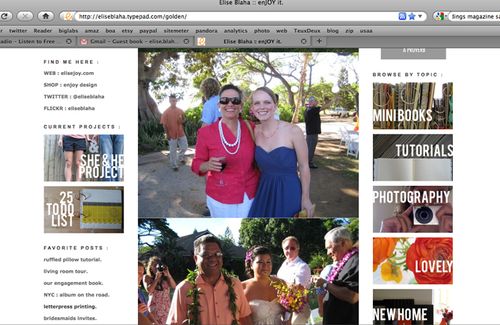
I recently added buttons to the right sidebar that denote blog categories. I am in the process of going through 4.5 years of archives to get everything sorted. Hopefully this will make searching for past projects easier!

I got an email about how I made the photo buttons and this quick tutorial shows the process. Keep in mind, this works for typepad. I am not sure of the exact process for other blog platforms, but the web coding should be the same.

FIRST : Make your buttons in photoshop. Mine are 170×100 pixels. Save each button as a ".jpg".

I wanted my buttons to be consistent so I kept them all with a photo background (that related to the category) and then used bebas font in white with the category name.
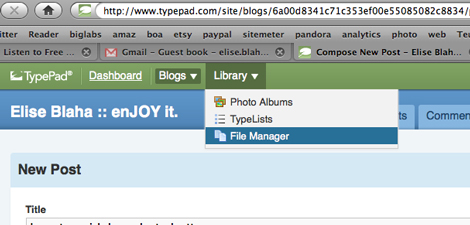
Filemanager

SECOND : Upload your button images into typepad through the file manager.

Once you have uploaded your files through typepad, you should be able to "find" them online by typing your blog address and the PHOTONAME.jpg (EXAMPLE : "http://eliseblaha.typepad.com/minibooks.jpg" takes you to this.) That is where your image now "exists" within the internet.
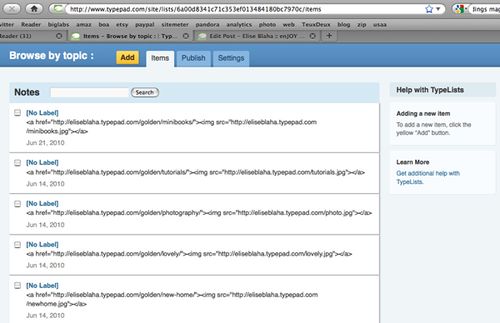
Lists

THIRD : Create a typelist. I used the notes feature which allows you to put as much text as necessary under each item. Leave the label blank and type the following webcode into the note section :

<a href="LINK TO WHATEVER"><img src="YOUR IMAGE ADDRESS"></a>

OR

<a href="http://eliseblaha.typepad.com/golden/minibooks/"><img src="http://eliseblaha.typepad.com/minibooks.jpg"></a&gt;

And that's it. Add a different note for each button and you can get a whole sidebar made out of linkable unique images.

If you have any questions – please ask in the comments and I will answer them there.

Posted in ,

29 responses to “how to : sidebar photo buttons.”

  1. DawnS Avatar

    Your sidebar photo buttons look beautiful…great idea! Thanks for the tutorial 🙂

    Like

  2. Tanya Gilmartin Avatar

    yay! thanks so much for this… I will be setting up mine like this.

    Like

  3. mandiesmithsegura Avatar

    How funny! I just taught myself on tuesday how to do this for my blogger blog! Haven’t posted them yet, but am working on a fun, new project! 🙂 I think for blogger it’s a little bit longer & involved of a process, but still similar. 🙂 Love your new, unified look!

    Like

  4. lacy Avatar

    love getting organized! Totally addictive. I just spent days sorting through my photos from 2007 to now and getting them in folders. Even virtual organization is satisfying!

    Like

  5. KissMyTulle Avatar

    I love your little tutorials. What a help for those of us still struggling to figure out Typepad. Thank you so much!

    Like

  6. Jessica McDougall Avatar

    oh my – thanks so much for this!!!

    Like

  7. Melissa Deakin Avatar

    thanks so much for sharing this.
    i’d love to do this for my blog as well.
    i’ll be adding it to my to-do-list.
    your wedding photos look amazing!
    i am so happy for you!

    Like

  8. Gabi Avatar

    Thank you so much for sharing this tutorial, Elise! I can finally organized my blog 🙂
    Hope you don’t mind if I do it the same way, love the look of your blog!

    Like

  9. Kathy Avatar

    Thank you so much for the tutorial, Elise…I can’t wait to try this.

    Like

  10. Giuseppina Avatar

    awesome! thanks for sharing 🙂
    def gonna have to look into doing this!

    Like

  11. desiree Avatar

    I have a question: How did you do link to multiple posts?, like linking to one subject…Do I just need a comma between all of the addresses? like this:
    or is there an easier way.

    Like

  12. elise blaha Avatar

    In typepad you can put your posts into categories. All of my wedding posts, for example, go into the wedding category. Then I just link to the categories.

    Like

  13. jillconyers Avatar

    It only took me 2 years to find this post LOL Thanks for the tut.
    If you want to take a peek 🙂
    http://jillconyers.typepad.com/

    Like

  14. Rani Avatar

    Thanks to Jillconyers, I can now do this!!!! Seriously, I have scoured the internet with not luck until now! Thanks Jill and thanks Elise for this wonderful tutorial!!!!!

    Like

  15. gogovivi Avatar

    Thanks for the great tutorial, Elise! So simple. I got my linked image in the sidebar, but can’t seem to get rid of the pesky header above the image. It says [no label]. I left the notes typelist blank as you directed. thanks!

    Like

  16. Tanya Gilmartin Avatar

    Hi Elise,
    I am working on a re-design of my blog. Finally getting around to using this tutorial. I have another couple of questions for you, How did you get your “hello there” blurb- i can only get my photo with a link to my “about” page. I would love to have a welcome message with a bit about me and what my blog is about…
    thanks so much for sharing!

    Like

  17. elise blaha Avatar

    hi Tanya, That is a typelist. I made one titled hello there and then added the photo and the text in the notes section. Typepad has lots of guidance in the help section about making typelists.

    Like

  18. Tanya Gilmartin Avatar

    TypePad HTML Email
    Great! Thanks for this Elise, nice of you to take the time to reply-
    That is very helpful, and your right- I have to spend some time in the help
    section on Typepad!
    Thanks again!
    Tanya
    http://www.tanyagilmartin.com
    Find me here: Website  
    Blog   Facebook   Flickr
    From: TypePad

    Like

  19. Melissa S. Avatar

    Thanks so much for this tutorial. I love the look of your photo buttons and will be making some of my own for my blog.

    Like

  20. Loredana Bucaria Avatar

    Hi Elise,
    congratulations, rellay from the deep of my heart!
    I’m writing you from italy and your blog was for me a great source of inspiration and Ideas!Thank you so so much for your ideas and your time.Your blog is fabulous, is amazing how you tell your stories.
    I have a question, how did you make a symbol of orange “e” in your blog name?Let me know thank youuu
    Love Lory

    Like

  21. Viola Mahr Avatar

    Thank you so much! after trawling the internet, yours is the only site I’ve found that has a tutorial that really helps (even better than the typepad one!)
    regards,
    Viola

    Like

  22. Ana Avatar

    Great tutorial! I use WordPress, so I used PhotoBucket to host my images. Easy peasy. Thanks for the tips and the inspiration!

    Like

  23. Mandy Avatar

    Hi Elise, each time you write a post that is about “DIY” how do you get that post to link up to the DIY photo button each time? Is their something that let’s it automatically go to that or do you have to update each new post under each category? Thanks.

    Like

  24. Mandy Avatar

    Figured it out….thank you for the tutorial. It was a little different with blogger.

    Like

  25. JonathanM Avatar

    Hi Elise, excellent tutorial, but how do you post to the notes typelist without giving a title to the list that then shows on the blog, as typepad demands one?
    Thanks.

    Like

  26. elise blaha Avatar

    Use the code to title the typelist. You will need to button name to be short, like one letter so it fits in the space.

    Like

  27. JonathanM Avatar

    ah, that makes sense. Thanks Elise.

    Like

  28. Debbie B Avatar
    Debbie B

    Hello. Just found your blog. I just purchased your blog design course. I am new to coding. Where do I find the file directory in Blogger and WordPress?

    Like

Leave a reply to Viola Mahr Cancel reply