enJOY it

an archived personal and craft blog from Elise Blaha Cripe.

Tutorialblogbanner

I have had a lot of different blog banners in the past few years of blogging. (I posted a list of most of them here.) Currently, I have a photo mosaic of somewhat recent photos on display. This is a simple tutorial on how to make something similar for your blog. (Click on images to see them larger/clearer.)
Picture 1
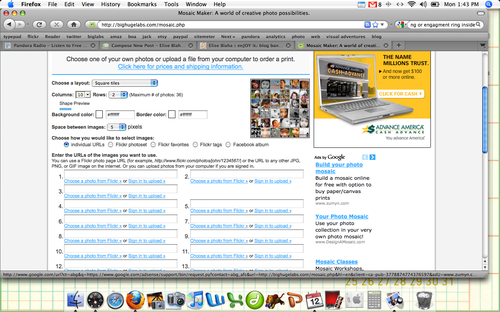
I make my photo mosaics using an online application. Big Huge Labs works with Flickr and can be linked to your flickr account. At the top of the screen you can pick how many rows and columns included in your mosaic. I use 10×2 to make my banners.
Picture 2
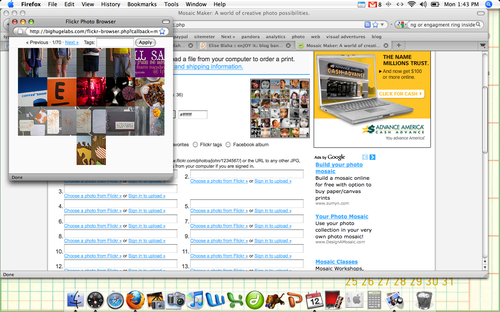
Once you link the mosaic maker with your flickr account, you will be able to click "Choose a photo from Flickr" and a pop-up window with your photo gallery will appear to pick from. Easy, easy. Add all your photos, click create and then save the mosaic that appears to your desktop. NOTE : I recommend NOT using other people's photos in your mosaics – stick with yours.

Picture 3
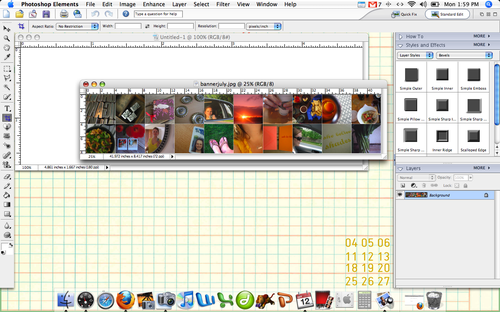
In PSE or Photoshop, create a new document. The pixel width you choose is important – it should match the width of your blog. You can figure out what the width is by adding the value of your columns (my sidebars are each 200 and then the main content column is 500) and then subtracting 15 (not sure where I read this, but it works for mine.) Typepad makes it fairly easy to tell how wide your columns are. I think Blogspot is pretty simple too…
Picture 5
Once you have your new blank document open, open up the mosaic you just created as well.
Picture 6
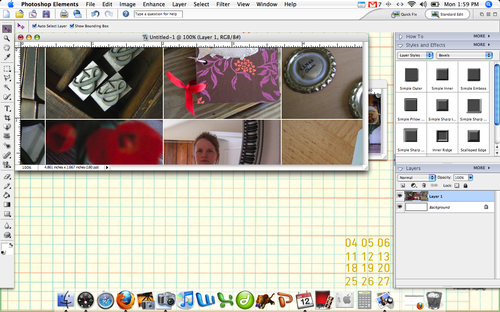
Drag the mosaic to the blank document. It should be larger and in need of resizing.
Picture 8
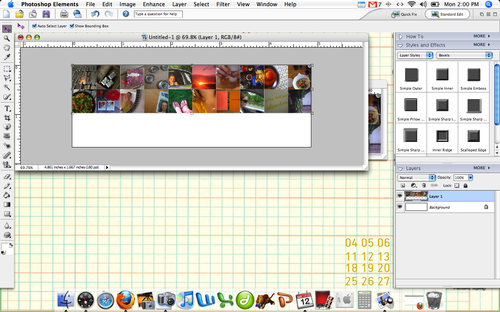
Re-size so the entire image fits on the new document. Hold down the shift key while dragging the mosaic to keep the proportions equal.
Picture 10
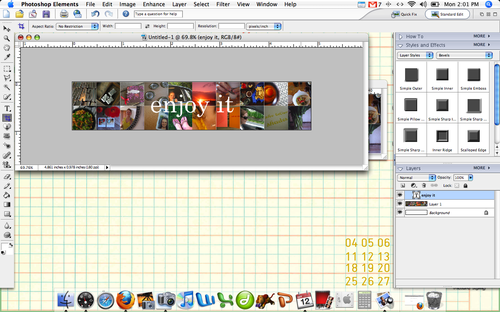
Add text and crop so out the extra white space.
Picture 11
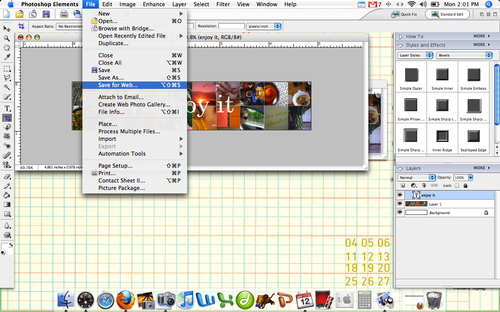
You can save the file normally or select "Save for Web" from the file tab. Usually when I am making visuals for the blog, I opt to "Save for Web" because it reduces the file size and allows me to adjust the size of the image.
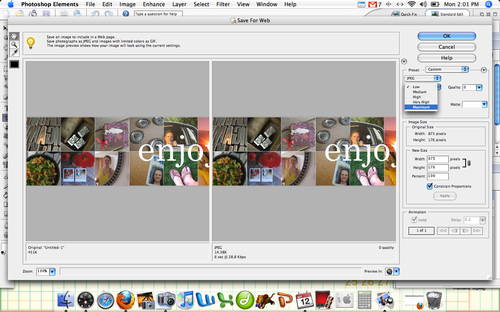
Picture 12
Be sure to select "Maximum" from the menu box the comes up to have the highest resolution. click OK to save.
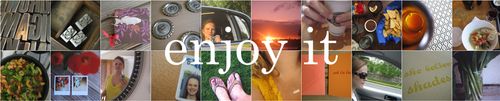
Examplebanner
TA-DA : Mosaic banner! Ready to upload to your blog.

Have a great Tuesday, I hope this was helpful. The mosaic maker is a fantastic shortcut for so many fun collage projects.

Posted in ,

24 responses to “tuesday how to : mosaic banners.”

  1. krystyn Avatar

    Thank you for this. I’m going to try it!!!

    Like

  2. Alicia Avatar

    Yup, I’m gonna try it too!

    Like

  3. Natalie Avatar

    I have been so bored with my banner lately. Once I get a free minute, i’m gonna try this. Thanks dude.

    Like

  4. Becca Groves Avatar

    Thank you, thank you, thank you!!!! I LOVE your banner and am so excited to go home today and PLAY with my pictures! Always love your blog, and love how inspired I am after I read what you’ve been up to…

    Like

  5. sonya audrey Avatar

    Goodness, thank you! Is this how you also do your monthly photo update? I was driving myself batty trying to always resize individual images to the same size + then drag them onto another, line everything up equally, etc etc etc. I love finding random new links on the internet that make life a zillion times simpler. You are officially my hero for today. THANK YOU! 🙂

    Like

  6. lucy Avatar

    i’m taking this tutorial as permission to copy your idea–because i’ve always loved loved your banner. thanks for sharing 🙂 you’re amazing.

    Like

  7. Melanie Avatar

    thanks for sharing…and helping to make life frustration free 🙂

    Like

  8. Elise Blaha Avatar

    yes, same program. whenever you see square grids, I used the mosaic maker. 🙂

    Like

  9. Melissa Avatar

    Thank you so much for the tutorial. I just changed my blog template last week and wanted to replace the generic header with something cool, I just wasn’t sure what. When I saw your tutorial, I knew it was what I wanted to do.
    http://scrappyjedi.blogspot.com/
    Again, thank you!

    Like

  10. Leslie Avatar

    Hey Elise,
    Thanks so much. I’m new to blogging and I love your photo mosaics—to think I could have one of my very own. Cool.
    http://www.leslie-dicou.blogspot.com

    Like

  11. Polka Dot Robot Avatar

    This is great. Thank you!

    Like

  12. Melissa Mann Avatar

    great tutorial!! Thanks!

    Like

  13. Tiffany Avatar

    Love your computer wallpaper in the backgound 🙂

    Like

  14. Rachel Avatar

    This is WONDERFUL! I know so many people who are going to go crazy over this. Thanks so much for putting this together, I’ll be linking.

    Like

  15. the calendar girls Avatar

    hey! that’s what we do! how neat 🙂

    Like

  16. Anne Avatar

    Great tutorial – thanks! I’ve used it for my new banner 🙂
    http://ultraviolet-baby.blogspot.com/

    Like

  17. jen Avatar

    thanks that was awesome!!!

    Like

  18. Marianne. Avatar

    Thanks for the tutorial. I’ve changed my blogbanner.
    It looks good!

    Like

  19. Chriss Johns Avatar

    Thank you for the tutorial. Just wonder if you sized your photos a certain way before you uploaded them to flickr?
    Thanks.
    Chriss

    Like

  20. Elise Blaha Avatar

    no, I didn’t just stuck with the normal images. If you want to guarantee the image in the square, you should crop before uploading though.

    Like

  21. Martina Tierney Avatar

    Please, more of this sort of stuff! As a new blogger, I’m banging my head on wall trying to design a site that I like the look of. I have no technical training, so this sort of information is invaluable. I’d love to know your ideas on resizing photos within the blog and even maybe general blog design…. loads of people must be in my position? Not wanting to be too technical with HTML etc. Am going to try this banner now. I know, you’re getting married and moving across America, but if you ever get the time…? Thank you. Love your work, blog etc.
    Martina, London x

    Like

  22. Nira DeLuna Avatar

    I love your blog page!!!

    Like

  23. Stephanie Avatar
    Stephanie

    Oh my! Totally just did this!! So easy and so fun! You rock!

    Like

Leave a comment